Google Wallet in Pakistan: Setup & Card Guide
Overview of Google Wallet in Pakistan
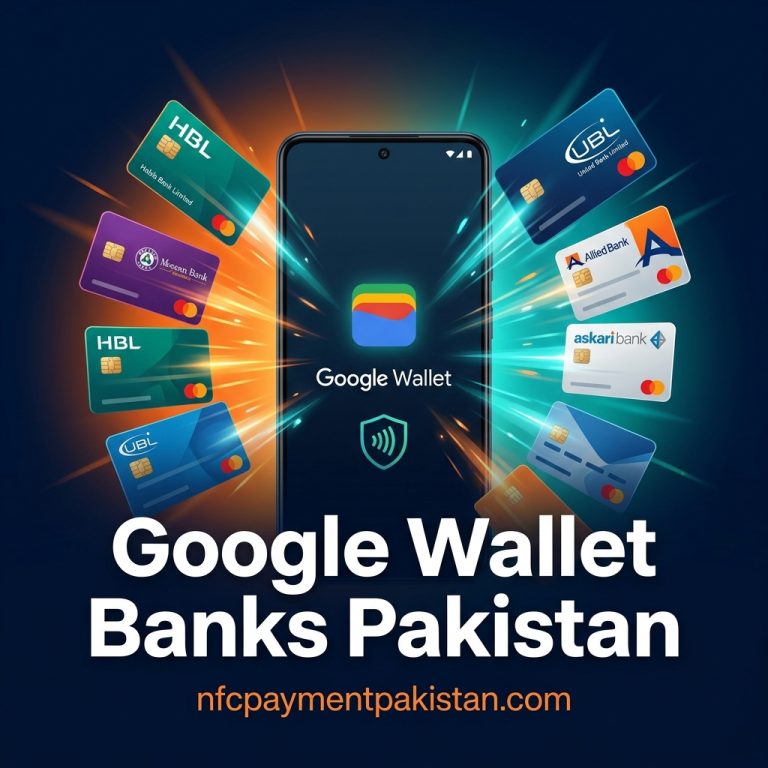
Google Wallet launched officially in Pakistan on March 12, 2025. It is the primary platform for NFC-based phone tap payments in the country. Cardholders with a supported Pakistani bank account can tokenize their debit or credit card into Google Wallet and pay by holding their Android phone close to any contactless POS terminal.
This integration uses tokenization to replace real card credentials with a unique, encrypted digital token. When you place your phone near a contactless reader, the device transmits only this virtual token, keeping your physical card details isolated from merchant systems.
Pakistan’s contactless payment infrastructure is growing quickly. According to State Bank of Pakistan (SBP) data for Q2 FY26 (ending December 2025), there were approximately 232,244 POS terminals deployed across 189,919 merchant stores — a 53% increase year-on-year. SBP reports that 92% of retail transaction volumes are now digital, which highlights a massive nationwide shift to cashless commerce. This means tap payments are now available at a wider range of locations than in previous years. For broader context on how this fits into Pakistan’s digital payment landscape, read our NFC Payment Pakistan homepage. For the latest metrics, read our detailed analysis of the Pakistan Digital Payments Q3 FY26 SBP Report.
Supported Pakistani Banks (2026)
Google Wallet supports selected debit, credit, or prepaid cards in Pakistan. For the complete verified network and card tier breakdown, see our dedicated Google Wallet Supported Banks Pakistan List.
Support is determined at the issuer level. Even if your bank is listed below, your specific card type (debit vs. credit, Visa vs. Mastercard) must also be eligible. Always verify your card inside the Google Wallet app before assuming it works. The following institutions are confirmed as integrated with Google Wallet in Pakistan, based on Google’s official support documentation and confirmed bank announcements.
| Bank Name | Supported Networks | Verification Method | Details |
|---|---|---|---|
| Allied Bank | Visa | myABL App / SMS OTP | Supported for Visa debit cards. UnionPay/PayPak cards use native app instead. |
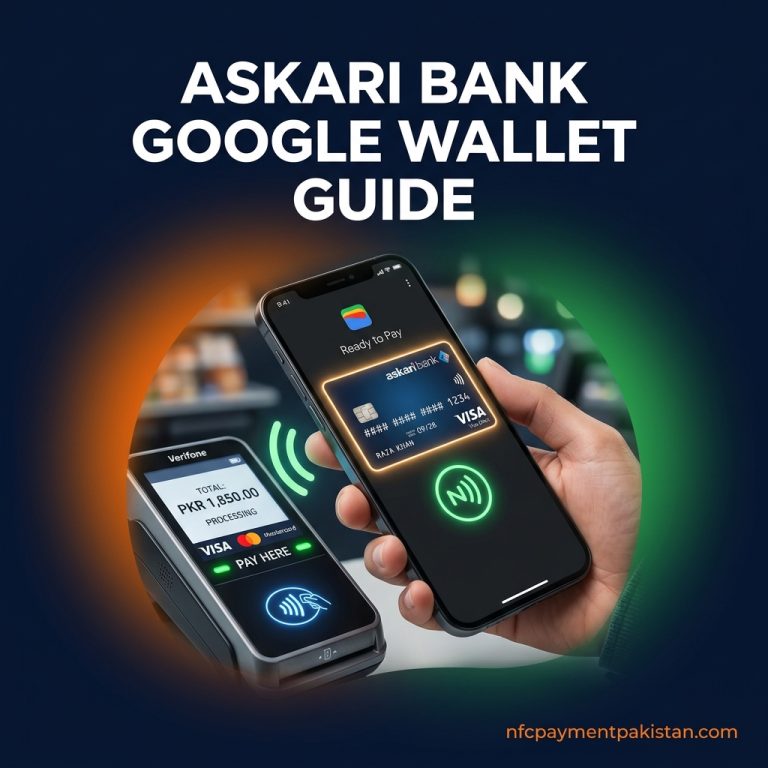
| Askari Bank | Visa | Askari App / SMS OTP | Supported for eligible Visa debit card products. Read our Askari Bank Google Wallet Guide. |
| JS Bank / Zindigi | Visa | Zindigi App / SMS OTP | Supported for Visa debit cards. Read our Zindigi Google Wallet Guide. |
| HBL | Visa & Mastercard | HBL Mobile App or SMS OTP | Includes Visa/Mastercard Debit and Credit card tiers. |
| Meezan Bank | Visa & Mastercard | Meezan Smart App / SMS OTP | Fully supports contactless Visa/Mastercard debit cards. |
| UBL | Visa & Mastercard | UBL Digital App / SMS OTP | Supported for eligible Visa/Mastercard debit cards. |
| Bank Alfalah | Visa & Mastercard | Alfa App / SMS OTP | Includes Visa and Mastercard debit and credit cards. |
| Faysal Bank | Mastercard | Faysal App / SMS OTP | Supported for Mastercard cards, including Faysal Noor variants. |
| The Bank of Punjab (BOP) | Mastercard | BOP App / SMS OTP | Supported for Mastercard credit card tiers. |
| JazzCash | Mastercard | JazzCash App / SMS OTP | Eligible Mastercard debit card products are fully supported. |
| Habib Metro Bank | Visa | Habib Metro App / SMS OTP | Contactless Visa debit cards are supported. |
| Easypaisa Digital Bank | Visa | Easypaisa App / SMS OTP | Visa debit cards supported. Read our Easypaisa Google Wallet Guide. |
How to Set Up Google Wallet on Android
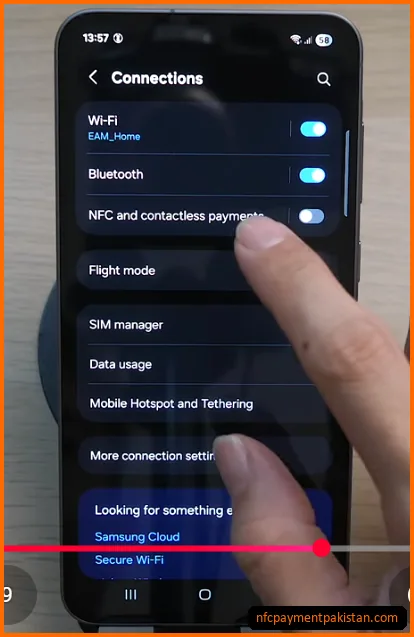
Setting up Google Wallet for tap-to-pay requires your phone to meet minimum security requirements. You must enable NFC and set up a secure screen lock (PIN, password, or biometrics) before adding a card.
- Verify NFC Hardware: Open your phone’s
Settings>Connectionsand toggle onNFC and contactless payments. If your phone lacks the necessary hardware chip, check our checklist of compatible budget NFC enabled phones in Pakistan.
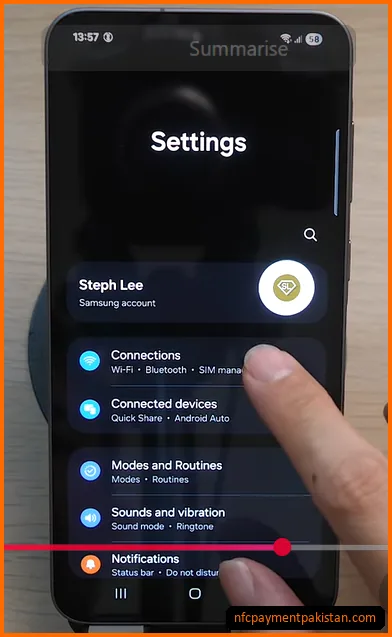
- Verify and Enable NFC: Ensure the NFC switch is active. Under this submenu, you can tap to verify default payment settings.
- Download the App: Install Google Wallet from the Google Play Store. Verify that your device is certified and has not been rooted.
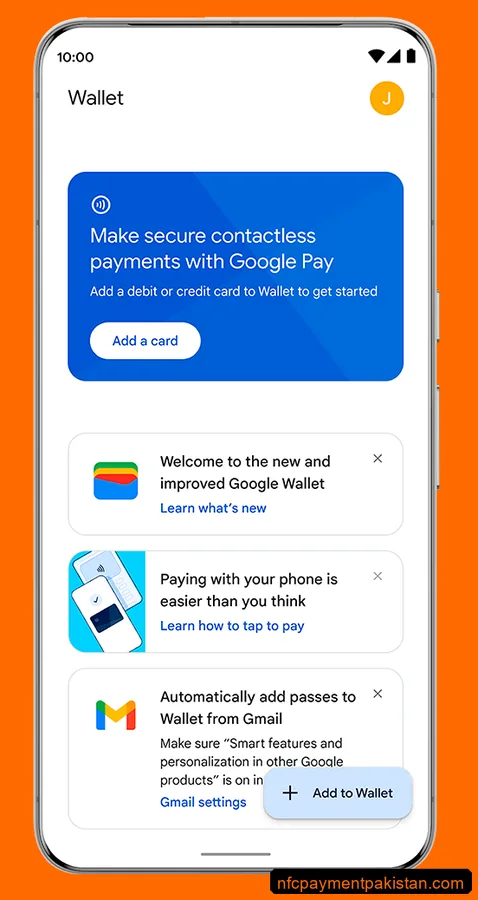
- Add a Card: Tap
Add to Wallet, then selectPayment card. Use your camera to capture card details or enter them manually. - Set as Default App: Go to your phone’s NFC settings, tap
Default wallet app, and select Google Wallet. - Verify Identity: Select a verification method (OTP via SMS, Email, or Bank App) to complete card tokenization.
Identity Verification & Payment Security
When you add a card, your bank requires a verification check to ensure you are the authorized cardholder. An OTP (One-Time Password) is sent to your registered mobile number or email. You must input this code to activate the card inside Google Wallet. Depending on the issuer, you might also have the option to verify instantly by logging into your active mobile banking app. For a security comparison with account-based payments, check our Raast P2M vs NFC Tap & Pay vs QR Payments comparison.
Once activated, payments use a secure system:
Using Google Wallet on Wear OS Smartwatches
If you own an NFC-enabled smartwatch running Wear OS (such as a Samsung Galaxy Watch or Google Pixel Watch), you can pay directly from your wrist in Pakistan.
To configure Wear OS payments:
- Open the Google Wallet app on your smartwatch (download it from the Play Store if missing).
- Follow the screen prompts to set up a secure passcode lock for your watch. This is mandatory to prevent unauthorized transactions if the watch is removed from your wrist.
- Add a supported card via your linked Android phone when prompted. The phone app will handle the authentication and sync the digital token directly to the smartwatch’s secure enclave.
- To pay, double-click your watch’s physical shortcut button and hold the screen near the POS reader.
Google Wallet Pakistan FAQ
Can I add my Easypaisa card to Google Wallet?
Easypaisa Digital Bank’s Visa debit card was announced as a supported issuer after the March 2025 launch. Try adding your card inside Google Wallet — if it succeeds and reaches OTP verification, your card tier is eligible. If you receive an error immediately, your specific product may not yet be activated for tokenization by Easypaisa. Contact Easypaisa’s helpline for current card status.
Why does my card say “contact your bank” during setup?
This usually happens if your card doesn’t support international e-commerce transactions, if the bank’s OTP server is down, or if the card type is ineligible for tokenization. Contact your issuer to activate e-commerce options. Read our full guide on Google Wallet Card Not Supported Pakistan Fixes for detailed solutions.
Can I use Google Wallet on a rooted Android device?
No. Google Wallet requires the device to pass SafetyNet integrity checks. Rooted devices or phones with unlocked bootloaders are blocked for security reasons.
For iPhone users, it is important to remember that Google Wallet tap-to-pay is restricted to Android devices. iOS users cannot use it as a replacement for Apple Pay. Furthermore, Apple Pay is not officially supported for Pakistan-issued cards. For details on alternatives and official issuer listings, read our guide on Apple Pay in Pakistan.
If you experience payment setup problems or terminal errors, read our NFC Payment Pakistan Troubleshooting Guide for detailed solutions.