Zindigi Google Wallet Pakistan: Cards & Setup Guide
Zindigi Google Wallet Integration
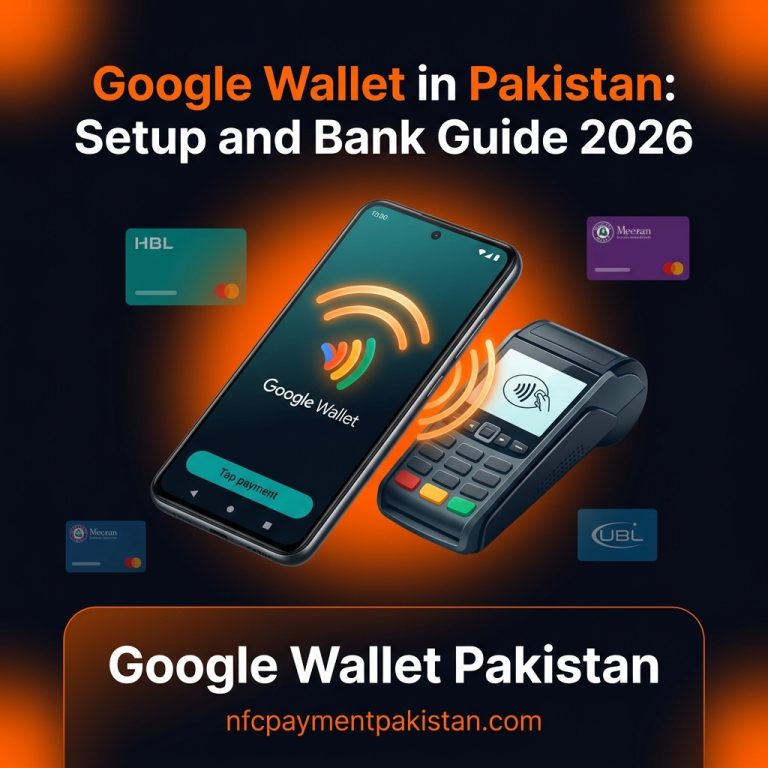
Zindigi (powered by JS Bank) has launched Google Wallet integration for contactless payments in Pakistan. Users with an eligible Visa Debit Card can now save their card details inside the Google Wallet app and complete tap transactions using their NFC-enabled Android phone. For a complete directory of all integrated financial institutions, view our Google Wallet Supported Banks Pakistan List.
Zindigi Google Wallet Supported Cards
Google’s official supported payment methods page for Pakistan lists **JS Bank (Zindigi) Visa Debit Cards** as supported. Other card networks (such as PayPak or Mastercard cards) are currently not supported by Google Wallet in Pakistan.
| Zindigi / JS Bank Card Variant | Network Type | Google Wallet Status |
|---|---|---|
| JS Bank / Zindigi Visa Debit Card | Visa | Supported |
| Zindigi Visa Virtual Debit Card | Visa | Likely supported (Verify in-app) |
| Zindigi PayPak Debit Card | PayPak | Not Supported |
| Zindigi Mastercard Debit Card | Mastercard | Not Supported |
Google notes that banks decide whether their cards work with Google Wallet, and banks can restrict specific card products from mobile tokenization. For general verification steps, read our Google Wallet Pakistan Setup Guide.
Step-by-Step Setup Guide on Android
To use Zindigi Google Wallet, you need an Android phone running Android 9.0 or higher with built-in NFC hardware. Follow these steps to configure your card:
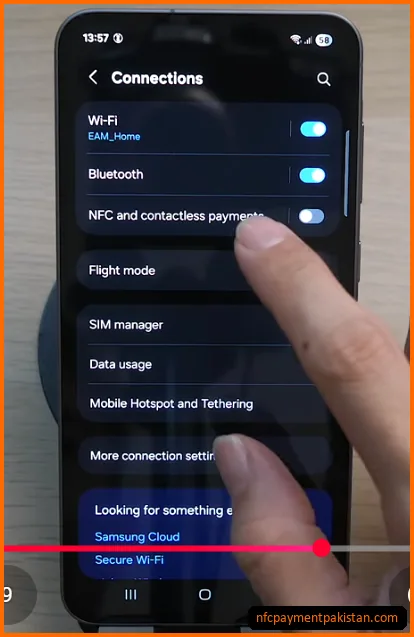
- Activate NFC Toggle: Open your smartphone’s
Settings>Connectionsand verify thatNFC and contactless paymentsis toggled on. If you need a compatible device, check our list of budget NFC enabled phones in Pakistan.
- Open Google Wallet: Install and open the official Google Wallet app from the Google Play Store.
- Enter Card Details: Tap
Add to Wallet, selectPayment card, and enter your Zindigi Visa card details (card number, expiry, and CVV code). - Accept Terms: Review and accept the issuer terms.
- Complete Verification: Enter the OTP code sent to your registered mobile number or email to complete card tokenization.
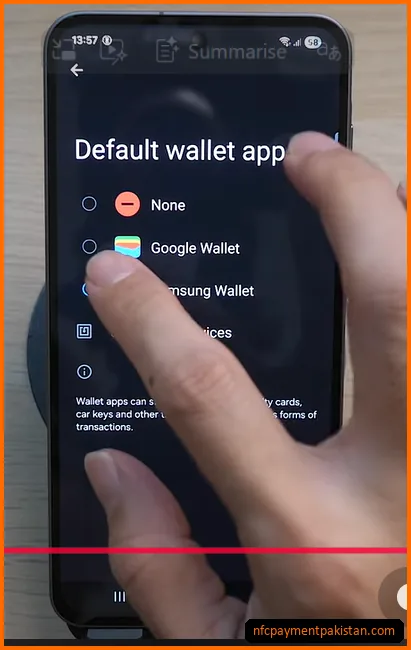
- Set Default Wallet: Under NFC default settings, select Google Wallet as your primary payment handler.
Zindigi Visa Virtual Cards
Zindigi allows users to instantly issue a **Visa Virtual Card** inside the Zindigi app. The virtual card functions exactly like a physical Visa debit card and is designed for digital checkouts without requiring a plastic card. If your issued virtual card is a Visa product, it is eligible for Google Wallet tokenization. Input the virtual card’s number, expiry, and CVV code (found inside your Zindigi app card portal) into Google Wallet to configure tap payments.
Zindigi Account Level Restrictions
Zindigi accounts operate under different transaction tiers. Depending on your onboarding status, transaction permissions can vary:
Why Zindigi Google Wallet May Fail
If you receive errors during card activation or POS checkouts, verify these common factors:
- Card Blocked: Make sure your Zindigi card is active. If you have locked the card inside the Zindigi app for security, tokenized payments are blocked.
- E-Commerce Toggle OFF: Google Wallet checks use online authorization windows. Open the Zindigi app, go to card controls, and ensure international and local online transactions are toggled ON.
- Device Integrity: Rooted Android devices or custom ROMs fail SafetyNet security checks, disabling Google Wallet payments.
For screen lock adjustments and troubleshooting POS terminal errors, check our NFC Payment Troubleshooting Guide.