Askari Bank Google Wallet Pakistan: Cards & Setup Guide
Askari Bank Google Wallet Integration
Askari Bank has officially launched Google Wallet support for its customers in Pakistan. Cardholders with an eligible Visa Debit Card can now securely tokenize their card credentials inside the Google Wallet app, enabling phone-based NFC checkout. For a complete list of all supported issuers in the country, read our Google Wallet Supported Banks Pakistan List.
Which Askari Bank Cards Support Google Wallet?
Google’s official Pakistan support documentation lists **Askari Bank Visa Debit Cards** as eligible for Google Wallet. According to Askari Bank’s release specifications, all variants of Visa Debit cards can be registered. However, other network products (such as PayPak or Mastercard cards) are currently not supported.
| Askari Card Variant | Network Type | Google Wallet Eligibility |
|---|---|---|
| Askari Visa Debit Card (Classic/Gold) | Visa | Supported |
| Askari Visa Platinum Debit Card | Visa | Supported |
| Askari Visa Signature Debit Card | Visa | Supported |
| Askari PayPak Debit Card | PayPak | Not Supported |
| Askari Mastercard Credit Card | Mastercard | Not Supported |
Verify your card’s network logo on the front of the plastic card. If your card features a PayPak logo, it cannot be tokenized inside Google Wallet. For troubleshooting other bank cards, visit our Google Wallet Pakistan Setup Guide.
Step-by-Step Setup Guide on Android
To use Google Wallet, you must have an Android phone with built-in NFC hardware running Android 9.0 or higher. For smartwatches, Wear OS 2.18 or higher is required. Rooted devices, custom ROMs, or phones with unlocked bootloaders are blocked due to security requirements. Follow these steps to configure your card:
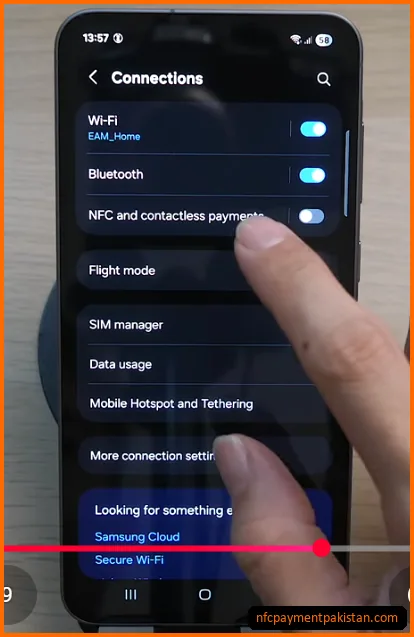
- Activate NFC Toggle: Open your phone’s
Settings>Connectionsand toggle onNFC and contactless payments. If you do not have an NFC-capable phone, see our list of compatible budget NFC enabled phones in Pakistan.
- Open Google Wallet: Install and open the official Google Wallet application from the Google Play Store.
- Add Askari Card: Tap
Add to Wallet, selectPayment card, and enter your Askari Visa Debit Card details manually or capture them using your phone’s camera. - Accept Issuer Terms: Read and accept Askari Bank’s terms of service.
- Verify Identity: Select a verification method (SMS OTP or Email OTP) and input the code sent to your bank-registered mobile number to finalize tokenization.
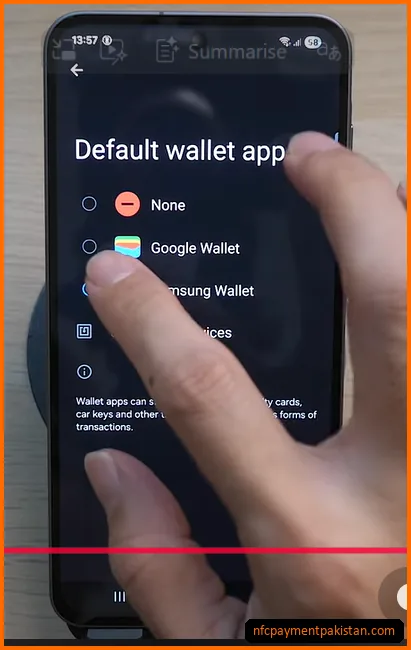
- Set Default Wallet: Tap
Default wallet appunder NFC settings and select Google Wallet.
How to Tap and Pay at POS Terminals
Once set up, you do not need to open the Google Wallet app to make payments. Follow this checkout procedure:
- Unlock the Phone: Ensure your phone screen is active and unlocked (using fingerprint, face unlock, or PIN code). Tap payments are blocked while the screen is locked or off.
- Hold the Phone Close: Bring the top-back or center-back of your phone (where the NFC antenna is located) within 4 cm of the wave symbol on the merchant POS terminal. Hold it flat for 1–2 seconds.
- POS PIN Limits: Transactions under PKR 3,000 are processed instantly. Transactions above PKR 3,000 require you to input your physical card’s 4-digit PIN on the merchant POS terminal keypad.
If you experience payment read failures or terminal timeouts, refer to our NFC Payment Troubleshooting Guide.
Transaction Limits and Offline Taps
contactless checkouts using Askari Google Wallet are subject to the same spending limits as your physical card. There are no additional fees or surcharges for tokenized transactions.
Askari Bank confirms that **an active internet connection is not required** to perform tap checkouts. Google Wallet caches secure tokens inside your device’s hardware chip, permitting a limited number of offline taps. However, you will need internet access later to allow the app to refresh its security tokens.
Why Askari Bank Google Wallet Setup May Fail
If you receive a card unsupported error or verification timeout during card registration, review these common issues: