Allied Bank Google Wallet vs myABL Tap & Pay: Which to Use?
Allied Bank Google Wallet vs myABL Tap & Pay
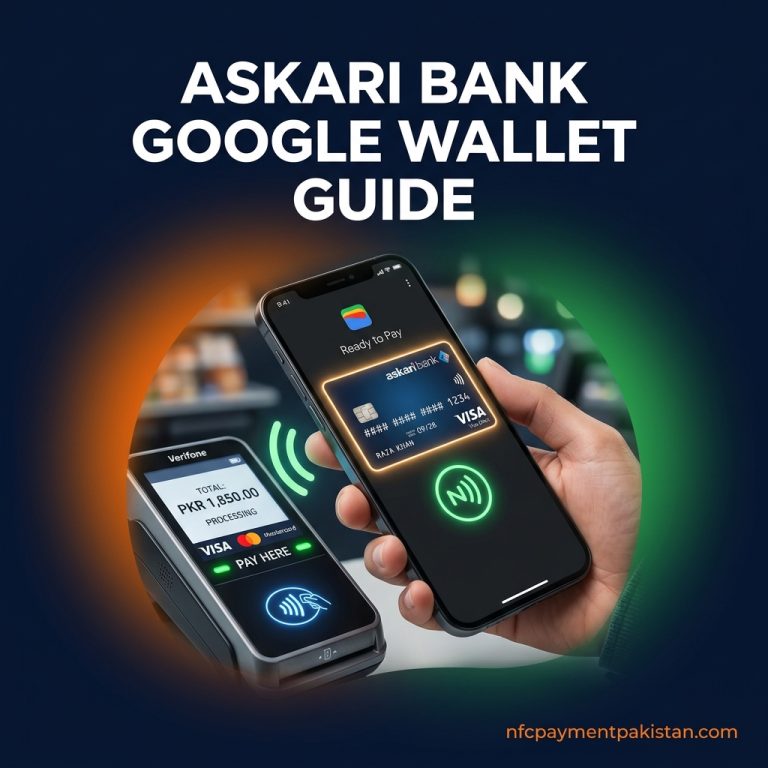
Allied Bank (ABL) customer support for NFC payments has updated. **Allied Bank Visa Debit Cards** are now officially supported inside Google Wallet for Pakistan. At the same time, Allied Bank continues to support **myABL Tap & Pay** — its native, in-app contactless engine for eligible co-badged UnionPay and PayPak cards. For general information on the digital payment ecosystem, visit our NFC Payment Pakistan homepage.
| Feature Parameter | Allied Bank Google Wallet | myABL Tap & Pay |
|---|---|---|
| Primary App | Google Wallet | myABL App (Allied Bank) |
| Supported ABL Cards | Visa Debit Cards only | Eligible UnionPay (UPI) & PayPak cards |
| Phone OS Required | Android (with Google Services) | Android Only |
| iPhone Support | No NFC tap support in Pakistan | Not available on iOS |
| Default Wallet Switch | Must select Google Wallet in NFC settings | Must select myABL in NFC settings |
| Internet at POS | Not required for taps after setup | No active internet required for normal POS taps |
| Transaction Limits | Standard card POS limits apply | Existing card limits (max 5 taps per token refresh) |
Allied Bank Google Wallet: Setup for Visa Debit Cards
If you hold a Visa-branded Allied Bank debit card, Google Wallet provides a clean integration. Because Google Wallet is the native Android payment framework, it handles checkout transmission smoothly without loading background bank apps.
To configure your Allied Bank Visa card:
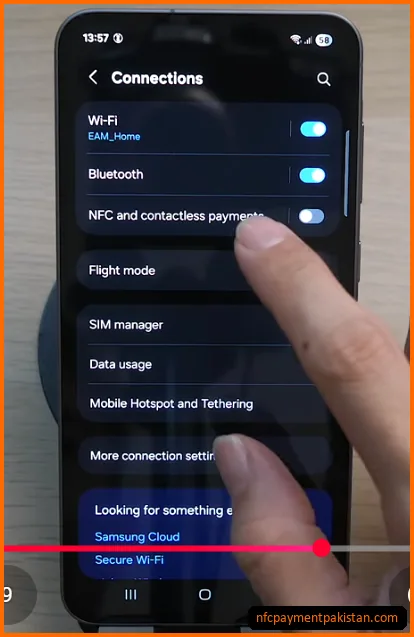
- Verify NFC is enabled in
Settings>Connections. If you need an NFC-capable phone, see our directory of budget NFC enabled phones in Pakistan.
- Download Google Wallet from the Google Play Store.
- Tap
Add to Wallet, selectPayment card, and enter your Allied Bank Visa card details. - Accept the bank’s terms of service and verify using the SMS/Email OTP code.
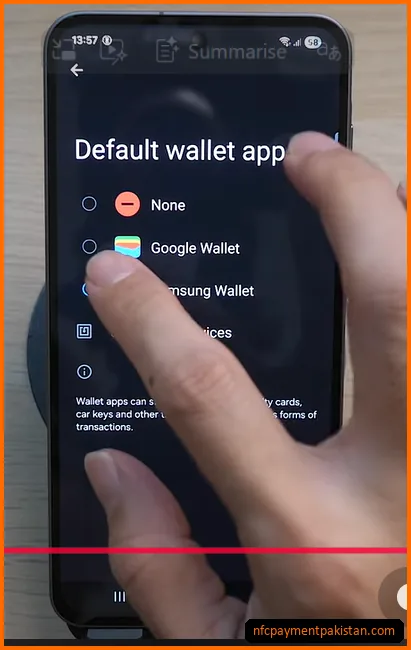
- Set Google Wallet as your default wallet app under settings.
myABL Tap & Pay: Setup for UnionPay & PayPak Cards
UnionPay and PayPak cards issued by Allied Bank are not supported by Google Wallet. For these card networks, Allied Bank runs its own native “Mobile Tap & Pay” engine inside the myABL app.
To activate myABL Tap & Pay:
- Open and log into the official myABL Android app.
- Navigate to the
Cardssection from the dashboard. - Select your active co-badged UnionPay/PayPak debit card and toggle on **Tap & Pay**.
- Access your phone’s NFC default settings and select **myABL** as the default payment app instead of Google Wallet.
- Unlock your phone and tap it flat on any NFC-enabled merchant POS reader to complete payment.
For troubleshooting in-store read errors or settings overlaps, consult our NFC Payment Troubleshooting Guide.
Contactless Limits and Token Limits
Both systems use secure hardware tokenization, but their usage rules differ:
Why Allied NFC Payments May Fail
Contactless checkout failures can occur due to configuration issues. Common errors include:
- Wrong Default App Selected: Android only permits one app to handle default contactless transmission. If you try to tap an Allied Visa Card but myABL is selected as the default app, the transaction will fail. You must match the default app in settings to the card type you want to tap.
- Unsupported Card Type: If you try to add an ABL UnionPay card to Google Wallet, it will return a card unsupported error. You must use myABL Tap & Pay for UnionPay.
- Rooted Devices: Neither Google Wallet nor myABL Tap & Pay will function on rooted Android devices or devices running custom ROMs due to hardware security requirements.
Allied NFC Payment FAQs
Does Allied Bank support Google Wallet in Pakistan?
Yes, Allied Bank supports Google Wallet for Visa Debit Cards. You can verify if your card is eligible by reviewing the complete verified list in our Google Wallet Supported Banks Pakistan List.
Can I use myABL Tap & Pay on iPhone?
No. Apple’s secure sandbox controls prevent third-party apps like myABL from accessing the NFC chip. myABL Tap & Pay is limited to Android devices.
Do Allied Bank tap payments require active internet at POS?
No. Contactless NFC checkouts do not require active Wi-Fi or mobile data at the point of sale. However, you will need an active connection to refresh your myABL card tokens or update Google Wallet security credentials.
What happens if my physical Allied card is blocked?
If your physical card is frozen or blocked, all tokenized copies (both inside Google Wallet and myABL Tap & Pay) will automatically be blocked by the bank’s authorization server.