NBP Digital Tap and Pay: National Bank NFC Payments Guide (2026)
Overview of NBP Digital Tap & Pay
National Bank of Pakistan (NBP) offers a proprietary contactless mobile payment feature integrated directly into the **NBP Digital** app. Rather than supporting card tokenization via Google Wallet, NBP has launched its own in-app NFC payment system for Android users.
This means you cannot add your physical NBP debit cards to Google Wallet. If you attempt to add an NBP card directly to the Google app, the process will return a card unsupported error message. Instead, NBP uses a secure **UnionPay International (UPI) Virtual Card** issued instantly inside the NBP Digital app. To learn how this fits into Pakistan’s broader contactless landscape, visit our NFC Payment Pakistan homepage.
UnionPay Virtual Cards: The Payment Method
Unlike other banks where you link your existing physical debit card to your phone, NBP Digital Tap & Pay payments require a dedicated **Virtual Card**.
A virtual card is a digital-only debit card linked directly to your primary NBP bank account. During issuance inside the NBP Digital app, you select your account, confirm the card creation, and create a secure **4-digit MPIN**. This MPIN is different from your physical card’s PIN and is used exclusively to authorize tap payments on your phone screen.
How to Set Up NBP Digital Tap & Pay on Android
Setting up NBP Tap & Pay requires an NFC-enabled Android phone running a certified operating system (no rooted devices or custom ROMs allowed). Follow these steps to configure the service:
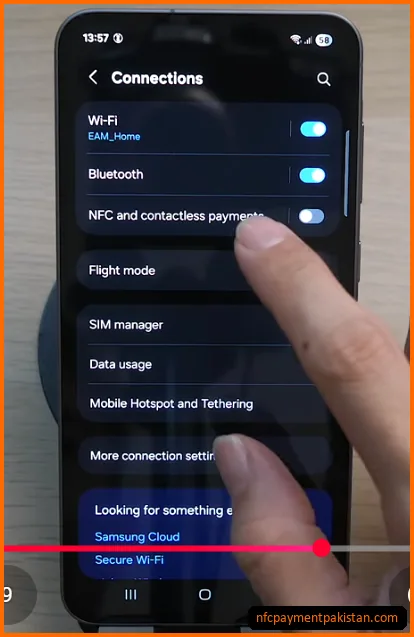
- Enable NFC Hardware: Open your smartphone’s
Settings>Connectionsand toggle onNFC and contactless payments. If you do not have an NFC-enabled phone, see our list of compatible budget NFC enabled phones in Pakistan.
- Log Into NBP Digital: Open the NBP Digital app on your Android phone and log in.
- Issue a Virtual Card: From the dashboard menu, navigate to the Virtual Card section. Select your account, choose UnionPay (UPI) as the card network, and confirm card issuance. Set your custom **4-digit MPIN**.
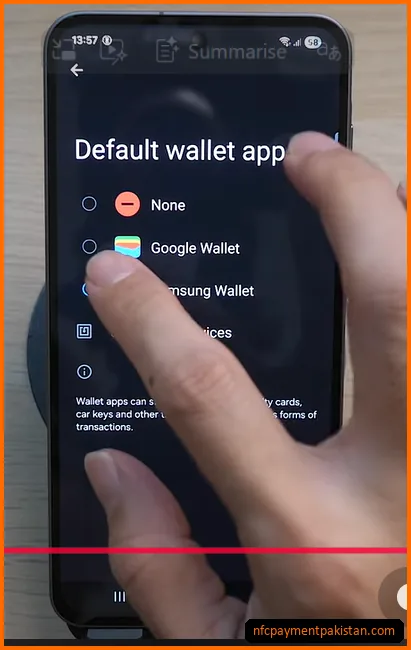
- Set as Default Wallet: Go to your phone’s NFC settings, tap
Default wallet app, and select **NBP Digital** instead of Google Wallet. This ensures your phone launches NBP’s app automatically at terminals.
How to Pay at Merchant POS Terminals
Allied Bank’s tap service requires you to unlock your phone *before* tapping, but NBP Digital utilizes a different tap-first routing loop:
- Tap First: Bring your mobile device close to the NFC symbol on the active POS terminal. You do not need to open the NBP Digital app or log in beforehand.
- App Activation: The terminal’s signal triggers your phone’s NFC receiver, which automatically opens the NBP Digital screen overlay.
- Select Card: The screen will prompt you to select your issued UnionPay Virtual Card.
- Enter MPIN: Input your 4-digit MPIN directly on your phone’s screen to authorize the payment. Hold the phone near the reader again to complete transaction transmission.
If you experience payment read failures or terminal errors, refer to our NFC Payment Troubleshooting Guide.
Huawei Pay: Contactless Alternative for Huawei Devices
If you use a compatible Huawei or Honor smartphone (running EMUI without native Google services), you can use **Huawei Pay** in Pakistan.
NBP has integrated its UnionPay Virtual Cards with Huawei Wallet. You can link your virtual card inside the Huawei Wallet app, enabling you to make NFC tap payments at retail terminals without using the NBP Digital app directly. This serves as a useful alternative for consumers with HMS-only devices.
Transaction Limits & Lost Phone Security
NBP Digital Tap & Pay adheres to strict transaction control limits set by the National Bank of Pakistan:
| Transaction Parameter | Maximum Limit (PKR) | Details |
|---|---|---|
| Per Transaction Limit | PKR 25,000 | Maximum amount allowed for a single NFC virtual card checkout. |
| Daily Cumulative Limit | PKR 100,000 | Maximum spending ceiling per day for tap payments. |
Because NBP Digital tap payments require entering your MPIN on your own screen for every checkout, it offers a high degree of protection. Even if your phone is unlocked, a transaction cannot be finalized without entering the MPIN.
If your device is lost or compromised, call the NBP helpline immediately at **(021) 111-627-627** from your registered mobile number. Request the representative to deactivate your virtual card, which immediately blocks the tokenized copy stored on your smartphone.