Easypaisa Google Wallet Pakistan: Cards & Setup Guide
Easypaisa Google Wallet Integration
Easypaisa (under Telenor Microfinance Bank / Easypaisa Digital Bank) has rolled out Google Wallet support for contactless mobile payments. Users with an eligible Easypaisa Visa Debit Card can now add their card details inside the Google Wallet app and complete checkouts by tapping their phone at merchant POS machines. For a full directory of all compatible issuers, view our Google Wallet Supported Banks Pakistan List.
Which Easypaisa Cards Support Google Wallet?
Google’s official Pakistan support documentation lists **Easypaisa Digital Bank Visa Debit Cards** as eligible for Google Wallet. This includes both physical and virtual Visa cards. However, traditional PayPak and UnionPay cards issued by Easypaisa are not supported.
| Easypaisa Card Type | Card Network | Google Wallet Eligibility |
|---|---|---|
| Easypaisa Visa Debit Card (Plastic) | Visa | Supported |
| Easypaisa Online Visa Card (Virtual) | Visa | Supported (Verify during setup) |
| Easypaisa PayPak Debit Card | PayPak | Not Supported |
| Easypaisa UnionPay Debit Card | UnionPay | Not Supported |
Ensure you verify your card network logo before attempting card tokenization. If you run into generic configuration problems, see our Google Wallet Pakistan Setup Guide.
Step-by-Step Setup Guide on Android
Contactless tap-to-pay checkouts require an Android phone running Android 9.0 or higher with an active Near Field Communication (NFC) chip. To find an affordable NFC-capable handset, check our directory of budget NFC enabled phones in Pakistan. Follow these steps to configure setup:
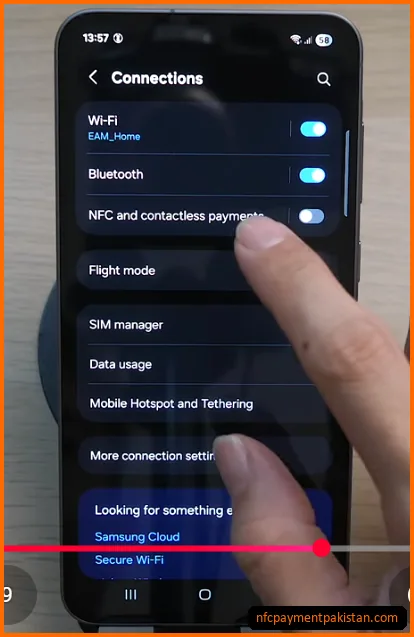
- Enable NFC Toggle: Go to
Settings>Connectionsand toggle onNFC and contactless payments.
- Download Google Wallet: Install the official Google Wallet application from the Google Play Store. Verify your phone bootloader is locked and has not been rooted.
- Add Easypaisa Card: Tap
Add to Wallet, selectPayment card, and enter your Easypaisa Visa card details (card number, expiry, and CVV). - Accept Issuer Terms: Read and accept Telenor Bank’s terms.
- Verify OTP: Enter the OTP code sent to your registered mobile number via SMS to complete tokenization.
- Set Default Wallet: Go to NFC settings and select Google Wallet as your primary payment app.
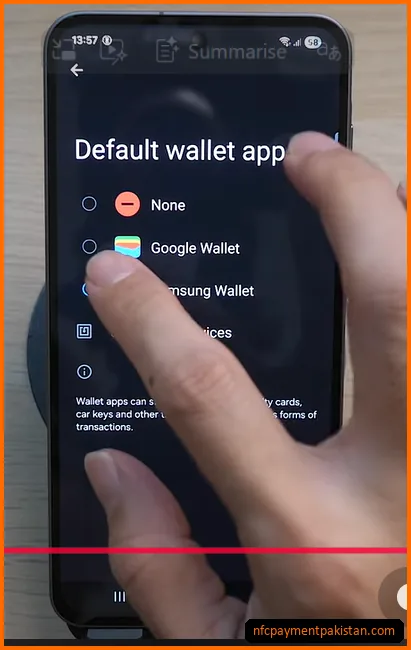
Easypaisa Online/Virtual Visa Cards
Easypaisa allows users to instantly issue a **Visa Virtual Card** inside the Easypaisa app dashboard. The virtual card is designed for secure online checkouts and local POS transactions. Because Telenor Bank issues this virtual card on the Visa network, it is eligible for Google Wallet. Input the virtual card details (found in the cards section of your Easypaisa app) into Google Wallet to enable contactless tap payments.
Easypaisa Google Wallet Tap vs. Easypaisa QR Codes
Easypaisa offers different digital checkout options for retail shopping. It is helpful to contrast the two systems:
| Feature Parameter | Easypaisa Google Wallet NFC | Easypaisa QR Scan |
|---|---|---|
| Payment Technology | NFC Tap-to-Pay wireless link | QR Code camera scan |
| Phone Requirements | Android phone with built-in NFC chip | Any camera-equipped smartphone |
| Card Required | Eligible Easypaisa Visa Debit Card | No card needed (Direct wallet balance) |
| Merchant POS Machine | Contactless-enabled POS terminal | Easypaisa QR merchant standee/app |
| Internet at POS | No internet needed for POS tapping | Requires active internet to load scanner |
Why Easypaisa Google Wallet May Fail
If you experience errors during card setup or checkout, check these common troubleshooting factors:
- E-Commerce Session Disabled: Easypaisa requires card transactions to have local and international e-commerce channels open for tokenization validation. Open the Easypaisa app, tap on Card Management, and verify that the Online Payments toggle is switched ON.
- Account Status or Balance: Ensure your card is active and not frozen. Daily transaction limits or low wallet balances will block card validation.
- SafetyNet Failures: Uncertified Android systems (rooted devices, custom ROMs, open bootloaders) automatically block Google Wallet services for fraud protection.
For biometric validation settings, diagnostic checklists, and terminal read errors, refer to our NFC Payment Troubleshooting Guide.