Google Wallet Card Not Supported Pakistan: Fixes
Quick Diagnostics Checklist
The Google Wallet card not supported Pakistan error is a frequent issue faced by local mobile payment users. When you receive a warning stating that your card cannot be configured for tap payments, it indicates a mismatch between your card tier, bank integration, or phone’s security status. First, check if your bank is integrated by reading our Google Wallet Supported Banks Pakistan List.
Common Error Messages and Root Causes
The following table lists the exact error strings displayed inside the Google Wallet application and what they signify for users in Pakistan:
| Error Prompt | Technical Meaning | Recommended Troubleshooting Action |
|---|---|---|
| This card can’t be set up for tap to pay | Your bank has blocked the card product from mobile wallet tokenization. | Call bank helpline to check card product type compatibility. |
| Couldn’t finish card setup for tap to pay | A connection issue occurred between Google servers and the bank’s core system. | Enable the e-commerce toggle in your banking app and retry. |
| This phone can’t be set up to tap to pay | The device lacks NFC hardware or is running uncertified software. | Verify NFC toggle and Play Protect certification status. |
| Card is not ready to pay online | The card lacks e-commerce permissions. | Log into your bank app and toggle online payments ON. |
| Card suspended | Your bank has temporarily locked the mobile token registry. | Call the bank helpline to authorize mobile wallet status. |
For standard setup steps, refer to our primary Google Wallet Pakistan Setup Guide.
Reason 1: Exact Card Type Restrictions
This is the primary cause of support failures in Pakistan. While a bank may be listed as a Google Wallet partner, **only specific card networks and tiers are supported**. Google’s official documentation highlights card-level restrictions. For instance:
Reason 2: NFC Configuration & Default Wallet Settings
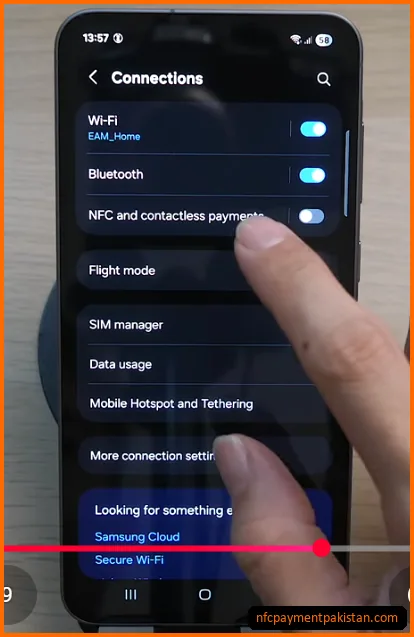
Google Wallet tap-to-pay checkouts communicate with store POS machines over Near Field Communication (NFC) signals. If your phone lacks NFC hardware or is configured incorrectly, contactless payments will not function.
- Activate NFC Toggle: Navigate to phone
Settings>Connectionsand toggle onNFC and contactless payments. If you need a compatible phone, see our directory of budget NFC enabled phones in Pakistan.
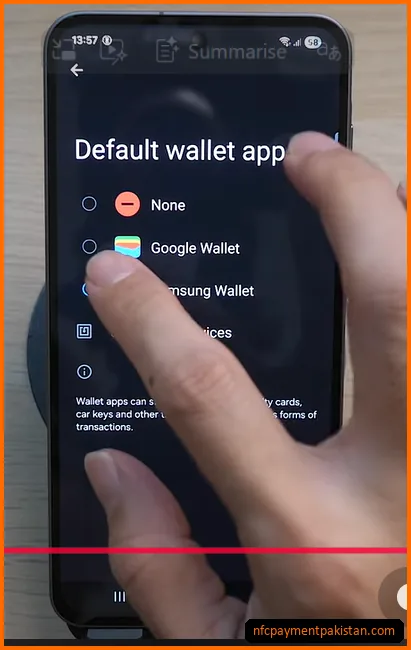
- Set Google Wallet as Default: If you use multiple tap apps (such as myABL Tap & Pay or NBP Digital), go to NFC settings, select
Default wallet app, and select Google Wallet.
Reason 3: SafetyNet & Device Integrity Failures
For anti-fraud protection, Google Wallet enforces SafetyNet security standards. In-store tap payments are automatically blocked if your device is running custom firmware or compromised software:
- Rooted Devices: If your Android phone has been rooted, card tokenization is blocked.
- Unlocked Bootloaders: Custom ROMs or phones with unlocked bootloaders fail SafetyNet security checks.
- Play Protect Status: Open your Google Play Store, tap your profile, select
Settings>About, and verify your device status underPlay Protect certification. It must say “Device is certified”.
Reason 4: Identity Verification & OTP Failures
Card tokenization requires verification via a One-Time Password (OTP) sent by your bank. If you do not receive the SMS code:
- Outdated Bank Registry: Verify that your bank has your current active mobile number and email.
- E-Commerce Session Closed: Many Pakistani banks block online verification windows unless e-commerce is enabled. Log into your banking app and ensure online payments are toggled ON.
For a comparisons of payment systems (like Raast vs NFC), read our guide on Raast P2M vs NFC Tap & Pay vs QR Payments. If your setup is correct but POS checkout continues to fail, check our NFC Payment Troubleshooting Guide.